How Windows file sharing reaches the network
When someone opens \\KT-FS1\Clients, their PC talks to the file server using
SMB (Server Message Block) over TCP port 445. Older systems can also use SMB over
NetBIOS, on TCP port 139 with name services on UDP 137 and 138. Network Scanner calls this
service “Netbios (Samba)”, because the same protocol is spoken by Linux and NAS devices
running Samba.
Three things must line up for a share to be reachable: the Server service is running, the firewall lets SMB in on the current network profile, and the share’s permissions allow the person asking. This lesson sets all three deliberately on Kestrel’s file server, KT-FS1. Everything here is done with Windows’ own tools — Network Scanner comes in lesson 4, to check the result from the outside.
A share is reachable when service, firewall and permissions all say yes. Security is making sure they only say yes on purpose.
Network profiles decide what is open
Windows puts every network connection in one of three profiles, and the firewall applies a different rule set to each:
| Profile | When Windows uses it | File sharing should be |
|---|---|---|
| Domain | The PC can reach a domain controller of the domain it belongs to | On for servers that share files |
| Private | A network you have marked as trusted (home, small office without a domain) | On only where you need it |
| Public | Anything else — cafés, hotels, unidentified networks | Always off |
A server whose profile flips to Public — for example because it booted before the domain controller was up — suddenly stops sharing files, which looks like a network fault. The opposite is worse: a laptop that treats a hotel network as Private offers its shares to strangers. Check the profile first, on every server you care about.
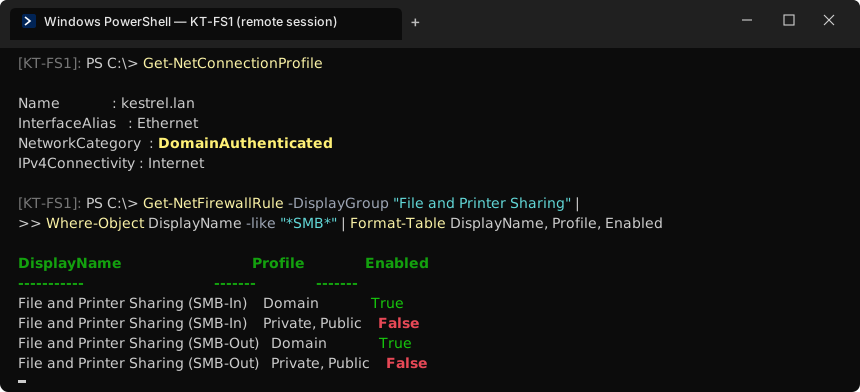
The File and Printer Sharing rules
Windows Defender Firewall ships with a rule group called File and Printer Sharing. The
important members are SMB-In (TCP 445), the NetBIOS rules (TCP 139, UDP 137–138) and
the Echo Request rules that answer ping. Each rule can be enabled per profile.
Check from your own PC
Open a remote session to the server (
Enter-PSSession KT-FS1) or run the commands in Figure 1 locally. You want SMB-In enabled on Domain and disabled on Public.Set it centrally, not by hand
In a domain, configure the rules with Group Policy (Computer Configuration → Policies → Windows Settings → Security Settings → Windows Defender Firewall) so a rebuilt server gets the same settings automatically.
Decide about ping
Allowing Echo Request on the Domain profile makes troubleshooting and scanning easier. If your policy blocks it, that is fine — lesson 6 shows how to make Network Scanner check hosts with a TCP connection instead.
Share permissions and NTFS permissions
A Windows share has two sets of permissions. The share permissions apply only when someone connects over the network. The NTFS permissions on the folder apply to everyone, over the network or at the keyboard. When both apply, Windows gives the more restrictive of the two.
| Share permission | NTFS permission | Effective over the network |
|---|---|---|
| Everyone: Full Control | Staff: Modify | Staff: Modify — NTFS is stricter |
| Staff: Read | Staff: Modify | Staff: Read — the share is stricter |
| Everyone: Full Control | Everyone: Full Control | Everyone: Full Control — nothing limits it |
The common, sensible approach is to leave share permissions broad (Authenticated Users: Full
Control, or Change) and do the real work in NTFS. The dangerous pattern is the third row: broad on
both, usually because someone was fixing an “access denied” in a hurry. Remember it
— you will meet it on Kestrel’s Deploy$ share in lesson 10.
Create the shares on purpose
Kestrel’s file server holds five business shares. Each is backed by an AD group, and each group, not each person, gets the permission. When someone joins or leaves, you change the group membership and never touch the folder.
| Share | Folder | Who may read | Who may change | Owner |
|---|---|---|---|---|
| Clients | E:\Shares\Clients | Staff | Staff | Partners |
| Payroll | E:\Shares\Payroll | Payroll-RW | Payroll-RW | Payroll manager |
| Templates | E:\Shares\Templates | Staff | IT | Office manager |
| Scans | E:\Shares\Scans | Staff | Staff + printer scan account | Office manager |
| Public | E:\Shares\Public | Staff | Office manager | Office manager |
Creating one of them with PowerShell on the server looks like this. The share permission is broad; the NTFS permissions do the restricting.
New-Item -ItemType Directory E:\Shares\Templates
New-SmbShare -Name Templates -Path E:\Shares\Templates `
  -FullAccess 'KESTREL\Domain Admins' -ChangeAccess 'KESTREL\Domain Users' `
  -FolderEnumerationMode AccessBased -Description 'Letter and workbook templates'

# NTFS: stop inheriting, then grant by group
icacls E:\Shares\Templates /inheritance:r
icacls E:\Shares\Templates /grant 'BUILTIN\Administrators:(OI)(CI)F' 'NT AUTHORITY\SYSTEM:(OI)(CI)F'
icacls E:\Shares\Templates /grant 'KESTREL\Staff:(OI)(CI)RX' 'KESTREL\IT:(OI)(CI)M'
Access-based enumeration (the -FolderEnumerationMode AccessBased switch) hides
folders a user cannot open, which keeps the share tidy. It does not replace permissions; it only
changes what is listed.
Write a share register
The last step is the one most admins skip: write down what you just built. The share register is the list of shares that should exist, with their intended access. In Module C you will compare the scanner’s view with this list, and every difference is a finding.
Start by listing what the server actually shares today. From your own PC:
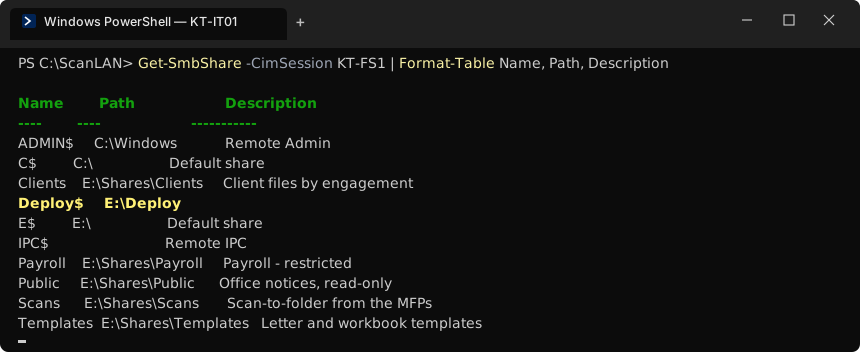
Deploy$, with no description.Every share on that list goes into the register — including the administrative ones, marked
as “system”, and including Deploy$, marked “purpose unknown —
investigate”. An undocumented share with a dollar sign at the end is exactly the kind of thing
this course is designed to catch.
Exercise: audit one file server by hand
Pick your most important file server and produce C:\LANScan365\notes\share-register.md:
- Run
Get-NetConnectionProfileand the firewall rule query from Figure 1; note the profile and which SMB rules are enabled. - Run
Get-SmbShareand list every share. - For each non-administrative share, record the path, purpose, owner, and the groups that should read and change it.
- Run
Get-SmbShareAccess -Name <share>andicacls <path>for each share and note anything that grants Everyone or an individual user. - Flag every share you cannot explain. Do not delete anything yet — Module C deals with it.
You now have the network map, the address plan and the share register: the three documents every scan will be compared against. Time to install the scanner.
Checkpoint
Tick these off before moving on. If one fails, the lesson section above it has the fix.
- Each server’s network profile is Domain (or Private) — never Public for a file server
- SMB-In is enabled only on the profiles where the server should share files
- No share grants permissions directly to individual users; groups only
share-register.mdlists every share with its purpose, groups and owner- You can say, for each share, what an ordinary member of Staff should be able to do