The question behind every share
By now you know what is shared on your network. The security question is different: who can do what with each share? A share that everyone can read may be fine (a folder of letter templates). A share that everyone can write to is a different matter: it is where ransomware encrypts, where someone drops a file that the next person opens, and where a mistake deletes a year of work.
Network Scanner can answer the question for every share on the network in one pass, instead of you clicking through permissions server by server.
Readable is a data question. Writable is a security question. Start with writable.
Turn on Check access
On the Scan tab, under Netbios (Samba), tick Check access. For each share found, Network Scanner now tests what the scanning account can do and marks the share with one of four results, which are also the four access-rights options on the Filter tab:
| Result | Meaning | What to think |
|---|---|---|
| Write | The account can create or change files | Is that intended for this account? For everyone like it? |
| Read | The account can list and open files but not change them | Fine for reference shares; odd for Payroll |
| Access denied | The share exists but refuses the account | Often exactly right — the share is protected |
| Error | The check could not complete | Timeout, an unusual device, or a permissions quirk; look at it by hand |
Whose access are you testing?
A scan tests the permissions of one account. By default that is the account running Network Scanner — the Current user option on the Netbios (Samba) tab of Preferences. Choose The following user and enter a user name, password and domain, and the checks run as that account instead.
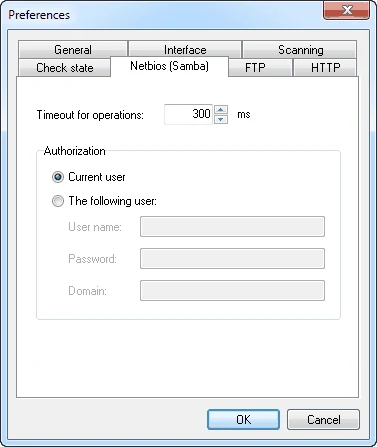
This matters because an administrator can write almost everywhere. A scan as
KESTREL\it.admin answers “what can the administrators change?” —
useful, but not the question you care about most. In this lesson, run the scan as yourself and treat
every Write as “at least administrators can write here”. In
lesson 11 you repeat it as an ordinary user, which is
where the real surprises live.
Filter for Write
A full scan with access checks on returns a long tree. Cut it down to the question:
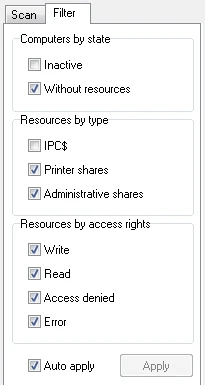
Leave only writable shares
On the Filter tab, under Resources by access rights, keep Write ticked and clear the other three. Clear Administrative shares and IPC$ under Resources by type — lesson 10 deals with those separately.
Hide the noise
Clear Inactive and Without resources so only computers with a writable share remain.
Read the list against the register
Open your
share-register.mdfrom lesson 3. For every writable share, the register should say that the Staff group (or some group you belong to) is meant to change it. Anything else is a question.
At Kestrel the filtered tree showed nine writable shares. Seven matched the register. Two did not:
\\KT-FS1\Scans, which the register said only Staff and the printers’ scan
account should change, and \\KT-FS1\Deploy$, which was not in the register at all.
Deploy$ is the subject of lesson 10. Scans is this lesson’s example.
Verify on the server
Network Scanner tells you the effective result for one account. Before changing anything, look at the permissions that produced it. From your admin PC, with Windows’ own tools:
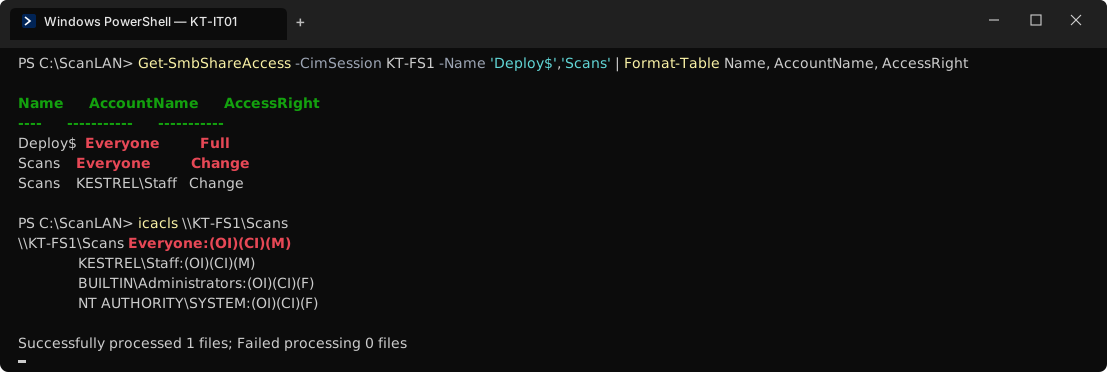
Scans grants Everyone Change at the share level and Modify in NTFS, so nothing narrows it down. Deploy$ grants Everyone Full Control.This is the pattern from lesson 3’s permissions table: broad on both layers. Someone set up scan-to-folder, the printer could not write, and Everyone was added to make the error go away. “Everyone” on a domain file server includes every authenticated account — staff, service accounts, and any account an attacker manages to use.
Fix it with groups, not exceptions
The fix is to grant exactly the groups the register names, in NTFS, and remove Everyone. For Kestrel’s Scans share, with Windows’ tools on KT-FS1:
# Share level: authenticated users may connect; NTFS decides the rest
Grant-SmbShareAccess  -Name Scans -AccountName 'NT AUTHORITY\Authenticated Users' -AccessRight Change -Force
Revoke-SmbShareAccess -Name Scans -AccountName Everyone -Force

# NTFS: remove Everyone, keep Staff and the printers' scan account
icacls E:\Shares\Scans /remove:g Everyone
icacls E:\Shares\Scans /grant 'KESTREL\Staff:(OI)(CI)M' 'KESTREL\svc.scan:(OI)(CI)M'- Test the business process straight away. Scan a page on KT-PRN1 to the folder. If it fails, the printer uses a different account than you think — check it in the printer console, not by adding Everyone back.
- Re-scan. The server settings say what you intended; only a fresh scan shows what the network actually allows.
- Write it down. The change goes into the access review with the date and who approved it.
The access review
The access review is the record of every writable share and the decision on each. It is also the document an auditor will ask for.
| Share | Writable as it.admin | Intended writers (register) | Finding | Decision | Owner |
|---|---|---|---|---|---|
| \\KT-FS1\Clients | Yes | Staff | OK | Keep | Partners |
| \\KT-FS1\Templates | Yes | IT | OK | Keep | Office manager |
| \\KT-FS1\Scans | Yes | Staff, svc.scan | Everyone: Change | Fixed 2026-09-22 | Office manager |
| \\KT-FS1\Deploy$ | Yes | — not in register | Everyone: Full | Lesson 10 | Unknown |
| \\KT-PC09\Share | Yes | — | Desktop sharing a folder | Move to KT-FS1, remove | IT |
| \\KT-NAS\Backup | Yes | Backup service | Admins only — confirm in lesson 11 | Keep | IT |
Exercise: review every writable share
- Tick Check access and scan all in-scope segments as your own account; save the result.
- Filter to Write only, without administrative shares and IPC$.
- For each writable share, compare with your share register and fill a row in
C:\LANScan365\notes\access-review.md. - For every mismatch, confirm with
Get-SmbShareAccessandicaclsbefore deciding. - Fix at least one over-broad share with groups, test the business process, and prove it with a re-scan.
Checkpoint
Tick these off before moving on. If one fails, the lesson section above it has the fix.
- You have a saved scan with Check access on, made as a known account
- Every share your account can write to is listed in
access-review.mdwith a decision - No business share grants Change or Full Control to Everyone
- Every change you made is confirmed by a fresh scan, not just by the server settings