Pick a private range with room
Every office network uses one of the private IPv4 ranges set aside for internal use:
10.0.0.0/8, 172.16.0.0/12 (172.16.0.0 to 172.31.255.255) and
192.168.0.0/16. Addresses in them are never routed on the internet, so you can use them
freely inside the building.
Which one you choose matters more than people think. Almost every home router hands out
192.168.0.x or 192.168.1.x. If your office uses the same range, a member of
staff connecting over VPN from home ends up with two networks that look identical, and traffic for
the file server goes to their kitchen instead. That is why Kestrel & Vale moved from 192.168.1.0/24
to 172.16.40.0/22 when they added the VPN — a block of four /24 segments that no consumer
router uses by default.
Choose an address range for the office you will have in five years, not the one you have today.
Size the segments
A /24 segment has 254 usable addresses, which is plenty for most small offices and easy
to read: the first three numbers identify the segment, the last one identifies the device. Resist the
temptation to use odd sizes like /26 to “save” addresses — private space is free,
and uniform /24s make scanning, firewall rules and troubleshooting much simpler.
| Segment | Range | Gateway | DHCP pool | Fixed addresses |
|---|---|---|---|---|
| Staff | 172.16.40.0/24 | .1 (KT-GW) | .100–.199 | .2–.99 reserved for IT kit, e.g. KT-IT01 .57 |
| Guest | 172.16.41.0/24 | .1 | .20–.250 (on the router) | None |
| Servers | 172.16.42.0/24 | .1 | .200–.220 (temporary kit) | .5 DC, .10 FS, .20 NAS, .31–.32 printers |
| Cameras & phones | 172.16.43.0/24 | .1 | .100–.199 (phones) | .40 NVR, .41–.49 cameras |
Two conventions make the plan predictable. The gateway is always .1. Fixed addresses
live below the DHCP pool, so a glance at an address tells you whether something was assigned
on purpose or picked up a lease.
Static, reserved or DHCP?
Each device gets its address one of three ways. Choosing deliberately is half the plan.
| Method | How it works | Use it for | Watch out for |
|---|---|---|---|
| Static | Typed into the device itself | The router, the domain controller (DHCP/DNS server) | Invisible to DHCP; easy to duplicate by accident |
| DHCP reservation | DHCP always gives this device (by its hardware ID) the same address | File servers, NAS, printers, the IT laptop | Must be updated when a network card is replaced |
| Dynamic lease | DHCP hands out any free address from the pool | Desktops, laptops, phones | Addresses change; always refer to these by name |
Reservations are usually the best option for anything people type the address of. The device keeps its address, and the DHCP server keeps a central record of who has what — which is exactly the record you want when a scan shows something unexpected. Kestrel keeps statics for just two devices: the router and KT-DC1, because DHCP cannot hand out an address to the DHCP server itself.
Names that tell you something
Your scans will show computer names next to addresses, so make the names useful. Kestrel uses a
short prefix for the firm, then a type, then a number: KT-FS1, KT-PRN2,
KT-PC17, KT-LT03. Anything that does not follow the pattern — a
DESKTOP-4G7HQ2 or a LAPTOP-8F3KD — is either brand new or was never
set up by IT, and it stands out immediately in a results list.
- Keep names to 15 characters or fewer; that is the NetBIOS limit, and Network Scanner can show NetBIOS names.
- Use letters, digits and hyphens only.
- Put the name in DNS for anything with a fixed address, so that scans can resolve it either way.
Check the plan against DHCP
A plan on paper is only useful if the network matches it. On a Windows DHCP server you can list the reservations and scopes with PowerShell from your own PC (this uses Windows’ DHCP Server module, part of the Remote Server Administration Tools — not Network Scanner).
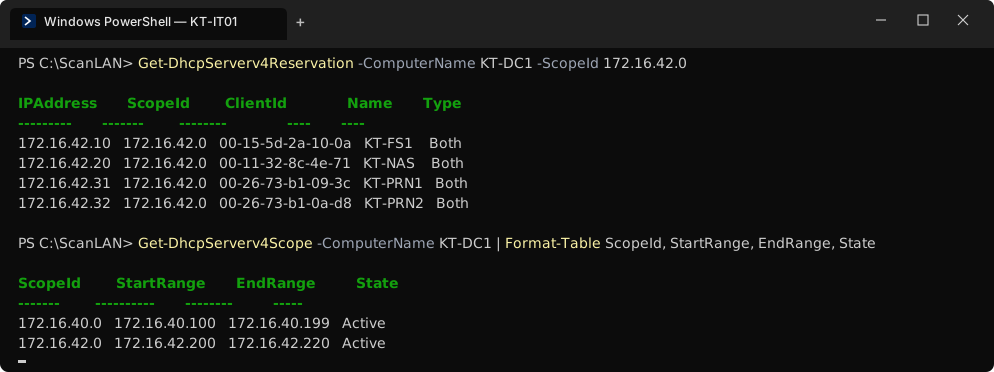
Compare the output with your plan. Every fixed device in the plan should appear either here or as a static address you can confirm on the device. Anything in the plan that is missing is a job for today; anything here that is not in the plan is a question for lesson 7.
Turn the plan into scan targets
This is where the plan pays off. Network Scanner keeps its targets in a list on the Scan tab, and each entry can be a range, an expression or a list of names. Build them straight from the plan.
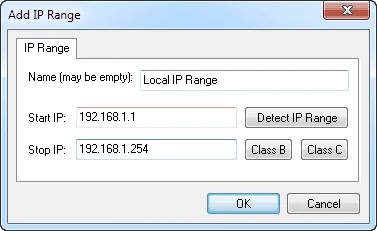
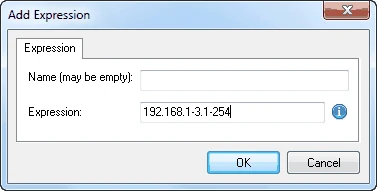
One range per segment you will scan often
Add an IP range named “Staff” from
172.16.40.1to172.16.40.254. The Detect IP Range button fills in the range of the PC you are sitting at, which is a quick way to check you are where you think you are.One expression for the fixed segments
Add an expression named “Servers and cameras”:
172.16.42-43.1-254. Expressions use a hyphen for a range and a comma for a list in any octet, so172.16.42.5,10,20,31-32would cover exactly the five fixed server-segment devices.Leave the guest segment out on purpose
Do not add 172.16.41.0/24. It is out of scope and isolated anyway; a range that always comes back empty only teaches you to ignore empty results.
You will add the third kind of target — a list of names — in lesson 4, once the program is installed. If you have not installed it yet, the install guide walks through it.
Exercise: write your address plan
Create C:\LANScan365\notes\ip-plan.xlsx (or a Markdown table if you prefer) with one
sheet per segment. Columns: address, name, device, method (static / reservation / DHCP pool), owner,
notes. Then:
- Mark the gateway, the DHCP pool and the reserved block on each segment.
- Fill in every fixed device from your lesson 1 map.
- Compare with your DHCP server’s reservations and note any mismatch.
- At the bottom, write each in-scope segment as a range or an expression, ready for lesson 4.
Staff                172.16.40.1 - 172.16.40.254        (range)
Servers and cameras  172.16.42-43.1-254                  (expression)
Fixed devices        KT-DC1, KT-FS1, KT-NAS, KT-PRN1,
                     KT-PRN2, KT-NVR, KT-GW              (name list, lesson 4)
Out of scope         172.16.41.0/24 guest
Checkpoint
Tick these off before moving on. If one fails, the lesson section above it has the fix.
- Your plan uses a private range and each segment has a documented purpose
- Servers, printers and appliances have fixed addresses outside the DHCP pool
- Every fixed address in the plan matches a reservation or a static setting on the device
- You can write each in-scope segment as a range or an expression without looking it up
- The guest network is in the plan but marked out of scope for scanning