Why the map comes before the scanner
It is tempting to install a scanner, point it at the network and see what turns up. You will get a long list. What you will not get is an answer to the only question that matters in security work: is this supposed to be here?
A scan tells you what is. A map tells you what should be. Every useful finding in this course comes from the gap between the two — the computer nobody recognises, the share that should have been deleted two years ago, the printer that is somehow on the camera network. If you skip the map, every result looks equally normal, and you end up either ignoring everything or chasing everything.
A scan without a map is a list. A scan compared against a map is an audit.
The map does not need to be pretty. At Kestrel & Vale it started as a page of Markdown and a photo of a whiteboard. It needs to be written down, dated and specific — names, addresses, owners — because in lesson 7 you will compare scans against it line by line.
Get permission in writing
Before you draw anything, make sure you are allowed to look. On your own home network that is obvious. At work it usually is too — you are the person responsible for the network — but “usually” is not good enough when a scan trips an alarm on a managed firewall, or when a partner asks why someone was testing access to the Payroll share.
Write a short note, get it approved by whoever owns the business risk (at Kestrel, the managing partner), and keep it in your notebook. It does not need a lawyer. It does need to say what you will do, where, and when.
Authorisation to scan — Kestrel & Vale
Date: 2026-09-14        Approved by: M. Vale, Managing Partner

I, the IT administrator, may scan the following networks for shared
resources, web and FTP services, and access rights:

  172.16.40.0/24   staff wired and Wi-Fi
  172.16.42.0/24   servers and printers
  172.16.43.0/24   cameras and phones

Not in scope: 172.16.41.0/24 (guest Wi-Fi), anything outside the office.
Window: business hours, September–October 2026.
Accounts used: KESTREL\it.admin, KESTREL\test.user (test account).
No changes will be made during scanning; fixes go through normal change.Walk the office and list what exists
Now make the list of things that should be on the network. Do it from three sources, because each one misses something:
Walk the building
Look at every desk, the comms cupboard, the print room, the reception area and the ceiling. Write down anything with a network cable or a Wi-Fi light: printers, the camera recorder, the door-entry panel, the conference-room screen, the NAS behind the server rack. At Kestrel this is how the second printer on the records-room shelf got onto the list.
Read what the servers already know
The domain controller’s DNS zone and DHCP leases list most active devices. Active Directory lists every computer account. None of them is complete — a device with a static address never asks DHCP, and a printer is not a domain member — but together they catch most things.
Ask the people who buy things
Whoever pays the invoices knows about the camera system the insurers wanted, the phone system from last year, and the laptop a partner bought on their own card. Ask them what has been bought with a network port in the last three years.
For each device record a name, what it is, where it lives, how it gets its address, and who owns it. At Kestrel & Vale the fixed-device part of the list came out like this:
| Name | What it is | Address | Addressing | Owner |
|---|---|---|---|---|
| KT-GW | Router / firewall, web admin on 443 | 172.16.40.1 | Static | IT |
| KT-DC1 | Domain controller, DNS, DHCP | 172.16.42.5 | Static | IT |
| KT-FS1 | File server (Clients, Payroll, Templates, Scans, Public) | 172.16.42.10 | Reservation | IT |
| KT-NAS | Backup NAS, web UI on 5000 | 172.16.42.20 | Reservation | IT |
| KT-PRN1 | MFP printer, 2nd floor, scan-to-folder | 172.16.42.31 | Reservation | Office manager |
| KT-PRN2 | MFP printer, records room | 172.16.42.32 | Reservation | Office manager |
| KT-NVR | Camera recorder, web UI on 8080 | 172.16.43.40 | Static | Facilities |
| KT-PC01–35 | Staff desktops | 172.16.40.100–199 | DHCP | IT |
| KT-LT01–08 | Laptops | 172.16.40.100–199 | DHCP | IT |
| KT-IT01 | IT laptop (the scanning PC) | 172.16.40.57 | Reservation | IT |
Notice the “Owner” column already. It will matter more than the address column by the end of the course.
Draw the segments
A segment is a part of the network with its own address range and its own purpose — usually a VLAN or a separate router interface. Small offices often have just one flat segment; Kestrel has four, because someone once did the sensible thing and kept guests, servers and cameras apart.
| Segment | Range | Purpose | Reachable from staff PCs? | Scan it? |
|---|---|---|---|---|
| Staff | 172.16.40.0/24 | Desktops, laptops, staff Wi-Fi | Yes | Yes |
| Guest | 172.16.41.0/24 | Visitor Wi-Fi, internet only | No (isolated) | No — out of scope |
| Servers | 172.16.42.0/24 | DC, file server, NAS, printers | Yes | Yes |
| Cameras & phones | 172.16.43.0/24 | Camera recorder, IP phones | Yes, via the firewall | Yes |
Then draw it. A box per segment, the router in the middle, the important devices inside each box, and a line for anything that crosses between segments on purpose (staff PCs reach the file server; the camera recorder reaches nothing). The drawing is for people — the table is for you and the scanner.
Find out where you are sitting
A scanner sees the network from wherever it runs. Before planning any scan, find out exactly where
your PC sits: its address, its subnet, its gateway and the DNS server it uses. On Windows,
ipconfig /all tells you everything in one go.
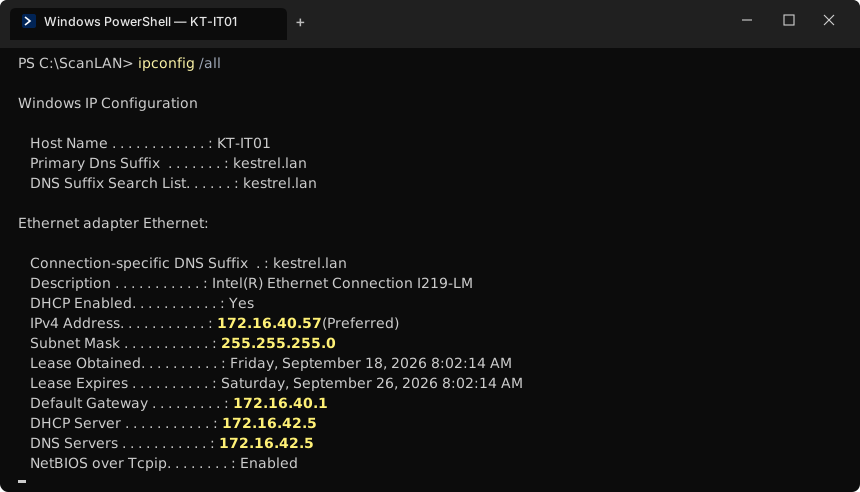
ipconfig /all on the IT laptop: address 172.16.40.57 on the staff segment, gateway 172.16.40.1, and KT-DC1 (172.16.42.5) as both DHCP and DNS server.Read it like this. The IPv4 address and subnet mask tell you which segment you are
on — here 172.16.40.0/24, the staff network. The default gateway is the router that
forwards your traffic to other segments; if it cannot reach a segment, neither can your scanner. The
DNS server is the one that will turn names like KT-FS1 into addresses; if it is
wrong, names in your scan results will be wrong too. The DNS suffix
(kestrel.lan) is what Windows appends to short names.
Write these four values at the top of your map. When a scan looks odd later, the first question is always “where was I scanning from?”
Give everything an owner
An owner is the person who can answer “should this exist?” and “who should be able to reach it?”. For a server it is usually IT. For the camera recorder it might be facilities. For the Payroll share it is the payroll manager, not you — you run the server, but they decide who reads payroll data.
Two rules keep this manageable:
- Every device and every share gets exactly one owner, named as a role (“Office manager”), with the current person in brackets.
- “Unknown” is a valid answer today and a finding tomorrow. If nobody owns the device on the records-room shelf, write that down — lesson 8 will come back to it.
At Kestrel the owners list turned up the first surprise before any scan had run: nobody could say who set up FTP on the NAS, or why. It went on the list as “owner unknown — ask the previous IT contractor”.
From map to scan targets
The last step turns the map into something a scanner can use. Network Scanner accepts three kinds of target, and your map already contains all three:
| Target type | In Network Scanner | From your map |
|---|---|---|
| IP range | Add IP Range: start and stop address | The staff segment, 172.16.40.1–254 |
| Address expression | Add Expression, e.g. 172.16.42-43.1-254 | The server and camera segments in one line |
| List of computer names | Add List: one name per line | The fixed devices: KT-DC1, KT-FS1, KT-NAS… |
You will build these properly in lesson 2 and run them in lesson 4. For now, add a “Targets” section at the bottom of your map listing the ranges you are allowed to scan and the names of devices you expect to find. When the first scan comes back, that list is your checklist.
Exercise: map your own network
Give yourself 35 minutes and produce C:\LANScan365\notes\network-map.md for the
network you look after. Use this outline:
# Network map — <organisation>
Date: <yyyy-mm-dd>   Author: <you>   Authorisation: authorisation.md

## Scanning PC
Name, IPv4 address/mask, gateway, DNS server, DNS suffix (from ipconfig /all)

## Segments
| Segment | Range | Purpose | Reachable from my PC? | In scope? |

## Fixed devices
| Name | What it is | Address | Static / reservation / DHCP | Owner |

## Things nobody could explain
- ...

## Targets for lesson 4
Ranges: ...
Expressions: ...
Names: ...
Do not worry if half the owner column says “unknown” and some addresses are blank. The map is a starting point. Scans will fill in the addresses; people will fill in the owners.
Checkpoint
Tick these off before moving on. If one fails, the lesson section above it has the fix.
network-map.mdexists inC:\LANScan365\notes\and is dated- Every segment has a purpose, a range and a note on whether you may scan it
- Every fixed device has a name, an address (or “unknown”) and an owner
- You know which segments you can reach from your own PC and which you cannot
- Your authorisation note lists the same ranges as your map