Three levels: range, computer, resource
Load the result you saved in lesson 4 (File → Load). The right-hand pane is a tree with three levels, and every row belongs to one of them:
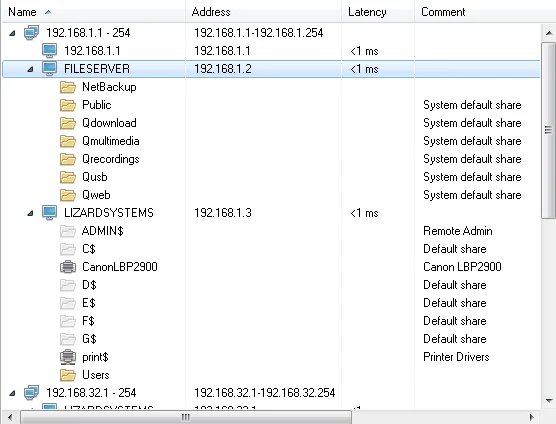
| Level | What the row is | Icon | Example |
|---|---|---|---|
| Range / target | One entry from your target list | Network icon | 192.168.1.1 - 254 |
| Computer | A host that answered the online check | Monitor icon | FILESERVER 192.168.1.2 |
| Resource | Something the computer offers: a share, a printer, an FTP or web service | Folder, printer, or service icon | Public, CanonLBP2900 |
A computer with nothing under it answered the online check but offered no resources for the services you scanned. That is normal for most desktops — and for printers, cameras and routers when you scan NetBIOS only.
The columns and what they mean
| Column | What it shows | How to use it |
|---|---|---|
| Name | Range, computer or resource name; the triangle sorts | Spot names that break your naming convention |
| Address | IP address of the computer (or the range for a range row) | Match to your address plan |
| Latency | Response time of the online check, e.g. <1 ms | Wired LAN hosts answer in about a millisecond; tens of ms suggests Wi-Fi, VPN or an overloaded device |
| Comment | The resource’s own description, or one you add | Tells you what a share is for — if anyone wrote it down |
Network Scanner can also show First scan and Last scan columns — when a computer was first and last seen. They become useful once you keep result files over time, which is the subject of lesson 7.
Reading share names and comments
Look at one computer at a time. The vendor’s sample file server is a good practice case:
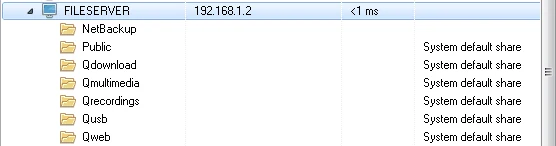
Three habits make share lists readable:
- Dollar sign at the end = hidden.
C$,ADMIN$,print$are created by Windows; anything else ending in$was created by a person who did not want it browsed. Lesson 10 is about these. - Comments written by the system are clues, not documentation. “Remote Admin” (ADMIN$), “Default share” (C$, D$…), “Printer Drivers” (print$) and “System default share” on many NAS devices tell you the share came with the box.
- An empty comment on a business share is a small finding. If nobody wrote down what it is for, nobody may know. At Kestrel,
Deploy$had no comment.
Expanding, collapsing and the name filter
A scan of a few segments produces hundreds of rows. Three controls keep it manageable:
Expand All and Collapse All
Collapse everything, then open one range at a time. The After scanning preference (see Install) decides how the tree looks when a scan finishes — everything expanded, only computer groups, or nothing.
Resource name filter
The box above the tree narrows the list to resources whose name matches. Filter on
$to see every hidden share on the network at once, or onPayrollto check that the name exists on only one server.Sorting
Click a column header to sort. Sorting computers by Latency brings slow and distant hosts to the top; sorting by Name groups your naming convention together and pushes strays to the ends.
The Filter tab
The second tab of the left pane hides rows by what they are, not by name. It is the fastest way to turn “everything” into “the rows I care about now”.
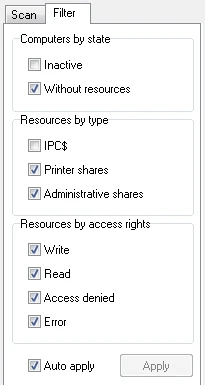
Each checkbox decides whether that kind of row stays in the tree: ticked rows are shown, cleared rows are filtered out. Watch the tree as you change a box — with Auto apply on you see the effect straight away, which is the quickest way to learn what each option does.
| Group | Options | Typical use |
|---|---|---|
| Computers by state | Inactive, Without resources | Clear both to keep only hosts that actually share something |
| Resources by type | IPC$, Printer shares, Administrative shares | Clear IPC$ and Administrative shares to focus on shares people created |
| Resources by access rights | Write, Read, Access denied, Error | Meaningful once Check access is on — leave only Write ticked in lesson 9 |
Version 21.07 added two related touches: filtering computers in the resources list, and hiding filtered computers that have no resources left, so a filtered tree does not fill up with empty computer rows.
Filter to answer one question at a time. “Which shares did people create?” is a different view from “which PCs are online?”
Acting on a row
The tree is not just a report. Select a share and Network Scanner can open it in Explorer or map it as a network drive; web resources open in your browser; the Copy to clipboard menu copies names and addresses for your notes. For a computer, the Administrative tools and Network tools menus launch things like Computer Management or Remote Desktop against it — lesson 12 shows how to add your own.
You can also add comments to computers and resources. Use them. “Owner: office manager” on KT-PRN1 or “Investigate — no purpose” on Deploy$ travels with the saved result file, so the next scan you load carries your notes.
From tree to questions
The output of this lesson is not a fix; it is a list of questions. Walk the tree top to bottom with your map and share register open, and write down everything you cannot answer. At Kestrel the list started like this:
# Questions from the 2026-09-18 NetBIOS scan
1. KT-FS1 \Deploy$ — no comment, not in the share register. What is it? Who uses it?
2. KT-PC09, KT-PC22, KT-LT04 each share a folder. Why? Do they need to?
3. KT-NAS shares Backup over SMB. Who can reach it? (Lesson 9)
4. Two desktops missing (KT-PC12, KT-PC30). Off, or gone?
5. KT-PRN1 and KT-PRN2 answer but share nothing — check their web consoles (Lesson 8)
6. KT-NVR did not appear in the NetBIOS scan — expected, confirm over HTTP (Lesson 8)
7. Latency to KT-LT02 is 38 ms — on Wi-Fi from the meeting room?
Some questions get answered in five minutes by asking a colleague. The rest are the backbone of Modules B and C.
Exercise: ten questions about your network
- Load your lesson 4 result and collapse the tree.
- On the Filter tab, clear Inactive and Without resources so only computers with shares remain.
- Then clear IPC$ and Administrative shares. What is left is every share a person created.
- Filter by name on
$and list every hidden share that is not administrative. - Write at least ten questions in
C:\LANScan365\notes\questions.md, each naming a computer or share. - Add a comment in Network Scanner to three rows you now understand better, and save the result under a new name.
Checkpoint
Tick these off before moving on. If one fails, the lesson section above it has the fix.
- You can point at any row and say whether it is a range, a computer or a resource
- You know which shares on your network are administrative and which were created by people
- You have used the Filter tab to filter out inactive computers and computers without resources
questions.mdholds at least ten questions, each tied to a device or share