Why web consoles and FTP matter
So far the course has looked at Windows shares. But a lot of what runs a small office is not Windows at all: the router, the printers, the NAS, the camera recorder, the phone system. Each of them is managed through a web console, and some of them quietly run an FTP server for scan-to-folder, firmware updates or backups.
These devices are where default passwords survive for years. Nobody logs in to them day to day, so
nobody notices that admin/admin still works. Finding every one of them, and
giving each an owner, closes one of the most common gaps in small networks.
Every web console on your network is a login page. Find them before someone else does.
Set up the HTTP check
Network Scanner looks for web servers on the ports listed on the HTTP tab of Preferences.
Out of the box that is 80, 8080.
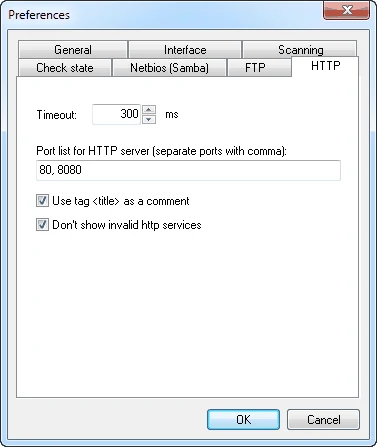
For Kestrel the HTTP settings become:
| Setting | Value | Why |
|---|---|---|
| Port list | 80, 8080, 5000 | Printers on 80, the camera recorder on 8080, the NAS console on 5000 |
| Use tag <title> as a comment | On | The page title usually names the device model — a free identification |
| Don’t show invalid http services | On | Hides ports that answer but do not speak HTTP |
| Timeout | 300 ms | Fine on a LAN; raise it only for slow links |
Set up the FTP check
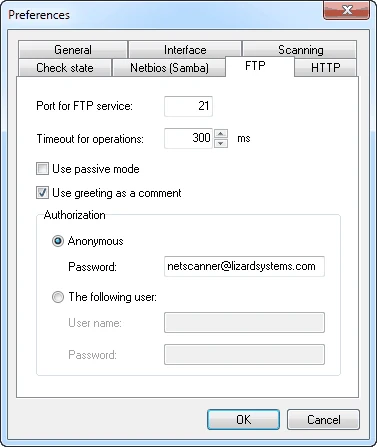
The FTP tab sets the port (21), a timeout, passive mode, whether to use the server’s greeting as a comment, and how to log in: Anonymous (with a password field, traditionally an email address) or The following user.
Leave it on Anonymous for this lesson. You are not trying to get in with real credentials; you are finding out which FTP servers let anyone in. Tick Use greeting as a comment — FTP banners often name the device and its firmware. If a server does not respond properly, try Use passive mode, which works better through firewalls.
Scan for services
Tick the services
On the Scan tab, tick FTP and HTTP. You can leave Netbios ticked too, but a services-only scan is quicker to read.
Decide on List directories
List directories (under FTP) reads the folder listing of each FTP server you can log in to. Turn it on: an anonymous server that also shows you a folder of backups is a far bigger finding than one that merely accepts the login.
Scan the fixed segments
Run the Servers and cameras expression and the Fixed devices list from lesson 4. Include the staff range once as well — PCs sometimes run web servers nobody knows about.
Web resources open in your browser straight from the tree; FTP resources open the same way. Open each console once, look at the login page, and note what it is.
Confirm with Windows
A second, independent check is good practice, especially for the ports Network Scanner does not
test. Windows’ Test-NetConnection answers a simple question for each device and
port: does anything accept a connection?
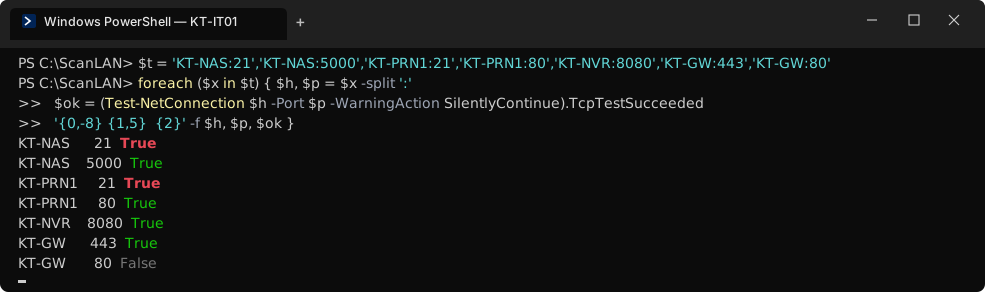
The two red lines matched what Network Scanner showed: KT-NAS and KT-PRN1 both run FTP servers. The printer’s is used for scan-to-FTP by the accounts team. The NAS’s had no known purpose.
What Kestrel found
| Device | Service | What the scan showed | Risk | Decision |
|---|---|---|---|---|
| KT-NAS | FTP :21 | Accepts anonymous login; List directories shows /backup | High — backups readable by anyone on the LAN | Disable FTP (lesson 12) |
| KT-NAS | HTTP :5000 | Console; title names the NAS model | Medium | Keep; admin password checked |
| KT-PRN1 | HTTP :80 | Printer console; factory admin password still works | High | Change password (lesson 12) |
| KT-PRN1 | FTP :21 | Anonymous refused; used for scan-to-FTP | Low | Keep; document the account |
| KT-PRN2 | HTTP :80 | Printer console; password was changed at install | Low | Keep |
| KT-NVR | HTTP :8080 | Camera recorder console | Medium | Keep; owner is facilities |
| KT-GW | HTTPS :443 | Router console, HTTPS only | Low | Keep |
The services register
Record every service in C:\LANScan365\notes\services.md. The column that matters most
is Owner: the person who will get the call when the console needs a firmware update or a
password change.
| Device  | Address      | Service    | Purpose              | Owner        | Login checked | Decision          |
|---------|--------------|------------|----------------------|--------------|---------------|-------------------|
| KT-NAS  | 172.16.42.20 | FTP 21     | none known           | IT           | anonymous OK  | disable           |
| KT-NAS  | 172.16.42.20 | HTTP 5000  | NAS admin            | IT           | changed       | keep              |
| KT-PRN1 | 172.16.42.31 | HTTP 80    | printer admin        | Office mgr   | DEFAULT       | change password   |
| KT-PRN1 | 172.16.42.31 | FTP 21     | scan-to-FTP          | Office mgr   | anon refused  | keep, document    |
| KT-NVR  | 172.16.43.40 | HTTP 8080  | camera recorder      | Facilities   | changed       | keep              |
| KT-GW   | 172.16.40.1  | HTTPS 443  | router admin         | IT           | changed       | keep              |
Two findings from this lesson — anonymous FTP on the NAS and the printer’s default password — carry forward to lesson 12, where you fix them and prove it with a re-scan.
Exercise: every console has an owner
- Add every web port your devices use to the HTTP port list; tick Use tag <title> as a comment.
- Set FTP to Anonymous with List directories on, and scan your fixed segments for FTP and HTTP.
- Confirm with
Test-NetConnection, including HTTPS consoles on 443. - Open each console once. Note the model and whether the default password still works.
- Write
services.md. Every row needs an owner; “unknown” goes to the top of your changes log.
Checkpoint
Tick these off before moving on. If one fails, the lesson section above it has the fix.
- The HTTP port list includes every plain-web port your devices use (at least 80 and 8080)
- Every HTTP and FTP service found is in
services.mdwith an owner - Every FTP server that accepts anonymous login is either justified in writing or scheduled to be closed
- Every device console you opened has had its default password checked