What “online” means to a scanner
Network Scanner works in two stages. First it checks whether each address is active. Only for active hosts does it go on to ask for shares, FTP or web resources. A host that fails the first stage never gets the second — it is simply marked inactive, even if it is sharing half the company’s files.
That makes the online check the most important setting you will tune. Get it wrong and your results are not just incomplete, they are misleading: an empty row looks exactly like a switched-off PC.
“Inactive” means “did not answer the check you configured”. It does not mean “not there”.
The Check state settings
The rules live on the Check state tab of the Preferences dialog:
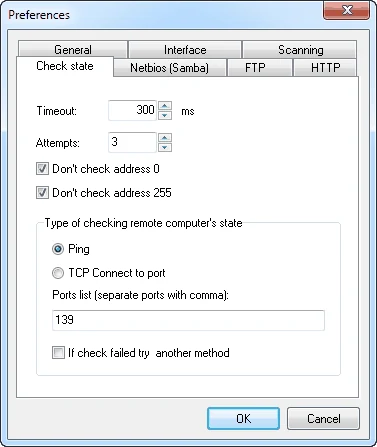
| Setting | Default | What it does |
|---|---|---|
| Timeout | 300 ms | How long to wait for each answer |
| Attempts | 3 | How many times to try before calling the host inactive |
| Don’t check address 0 / 255 | Both ticked | Skip the network and broadcast addresses of a /24 |
| Type of checking | Ping | Ping (ICMP echo) or TCP Connect to port |
| Ports list | 139 | Ports tried by TCP Connect, separated by commas |
| If check failed try another method | Off | When the chosen method fails, try the other one |
Ping or TCP connect?
Ping is quick and works for anything that answers ICMP echo. The problem is that Windows Firewall blocks inbound ping by default on many profiles, and plenty of appliances ignore it too. On a network like Kestrel’s, a ping-only scan quietly misses desktops whose Echo Request rule is off.
TCP Connect to port tries to open a connection to the ports you list. If anything answers — even with a refusal — the host is there. The default port, 139, is the NetBIOS session port; modern Windows usually answers on 445 too, so add it. For appliances, add the port their web console uses.
| Device type | Ports that usually answer | At Kestrel |
|---|---|---|
| Windows PCs and servers | 445, 139 | All KT-PC, KT-LT, KT-FS1, KT-DC1 |
| NAS devices | 445, 5000 or 443 | KT-NAS answers on 445 and 5000 |
| Printers | 80, 443, 9100 | KT-PRN1/2 on 80 |
| Camera recorders | 80, 8080, 554 | KT-NVR on 8080 |
| Router / firewall | 443 (admin), 53 | KT-GW on 443 from the staff side |
The most robust set-up is to keep Ping as the method, fill the ports list with the ports your devices use, and tick If check failed try another method. Anything that answers ping is found quickly; anything that ignores ping gets a second chance over TCP.
Timeouts, attempts and threads
On a wired LAN, hosts answer in about a millisecond. A 300 ms timeout with three attempts is generous, and you can leave it. Two cases justify changing it:
- Slow links — a branch office over VPN, or devices on a busy Wi-Fi. Raise the timeout to 800–1,000 ms rather than adding attempts.
- Large, mostly empty ranges — each silent address costs timeout × attempts. Two attempts instead of three shortens the scan by a third with little risk on a wired network.
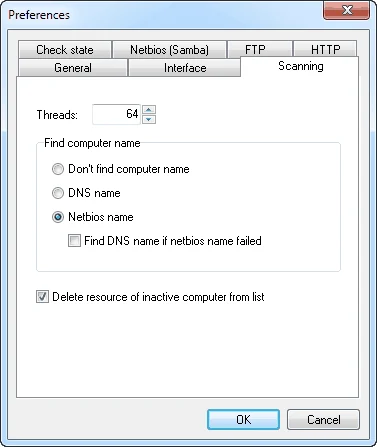
The Threads setting on the Scanning tab (64 by default) controls how many addresses are checked at once. The default suits most offices. Lower it if a scan seems to upset an old switch or a firewall’s connection limits; there is rarely any reason to raise it on a few hundred addresses.
NetBIOS names, DNS names, or none
Also on the Scanning tab: how Network Scanner finds each computer’s name.
| Option | Source | Good for | Weakness |
|---|---|---|---|
| Netbios name | Asks the host itself | Windows and Samba hosts; works without DNS | Appliances often have no NetBIOS name |
| DNS name | Asks your DNS server | Anything registered in DNS, including printers with reservations | Only as good as your DNS records; stale records show old names |
| Don’t find computer name | — | Very large ranges when you only need addresses | No names in the results |
For a Windows office, keep Netbios name and tick Find DNS name if netbios name failed. Windows machines report their own names; printers, the NAS and the camera recorder fall back to DNS, which works because lesson 2 put every fixed device into DNS.
When the NetBIOS and DNS names of a host disagree, that is worth a note: it usually means a stale DNS record, or a PC that was renamed without being cleaned up in DNS.
Why a host still looks offline
A Windows PC is inactive with ping, active with TCP
Likely cause: Its firewall blocks ICMP echo on the current profile.
Fix: Nothing to fix in the scanner: keep the TCP fallback on. If you want ping for troubleshooting, enable the Echo Request rule for the Domain profile by Group Policy.
Nothing on one segment answers at all
Likely cause: Routing or firewall rules between your segment and that one, or it is isolated on purpose.
Fix: Check what your gateway allows (lesson 1). The guest network at Kestrel is meant to stay invisible.
An appliance answers ping but shows no name
Likely cause: It has no NetBIOS name and no DNS record.
Fix: Add a DNS record for it; tick the DNS fallback.
A laptop is active in one scan, inactive the next
Likely cause: It moved between wired and Wi-Fi, went to sleep, or left the building.
Fix: Normal for laptops. Judge them over several scans (lesson 7), not one.
Kestrel’s check profile
After two trial scans, Kestrel settled on the following, written down so the next person can reproduce the results:
# Check profile — 2026-09-19
Check state:  Ping, timeout 300 ms, attempts 3
              Ports list: 445,139,80,443,5000,8080
              If check failed try another method: ON
              Don't check address 0 / 255: ON
Scanning:     Threads 64
              Find computer name: Netbios name + DNS fallback ON
Result:       ping-only scan  = 41 active hosts
              with fallback   = 47 active hosts (+5 desktops, +KT-NVR)
Six hosts that the first scan called inactive were there all along. That is the whole lesson in one line.
Exercise: find the hosts your first scan missed
Scan with ping only
Set Check state to Ping with the fallback off. Scan your staff range and note the number of active hosts.
Scan again with TCP fallback
Add the ports your devices use (start with 445,139,80,443) and tick If check failed try another method. Scan the same range.
Compare and explain
List the hosts that appear only in the second scan. For each, write why ping failed. Save the settings and the counts as
C:\LANScan365\notes\check-profile.md, and save the second result inC:\LANScan365\results\.
Use this profile for every scan from now on. Next, in lesson 7, you will start comparing scans over time — which only works if each scan is done the same way.
Checkpoint
Tick these off before moving on. If one fails, the lesson section above it has the fix.
- Every fixed device on your map is shown as active, or you know exactly why not
- Your check-state settings are written down in
check-profile.mdwith a reason for each - You have compared a ping-only scan with a TCP-plus-fallback scan of the same range
- Names in the tree match the names on your map; any mismatch is explained