What the dollar sign really does
Put a $ at the end of a share name and Windows leaves it out of the list you see when
you browse a computer in Explorer. That is all it does. The share is still there, it still answers to
anyone who types its name, and its permissions are exactly as strict or as loose as they were
before.
People use the dollar sign for two reasons. Windows uses it for shares that only administrators should need. And admins use it to keep a working share “out of the way” — software installers, scripts, a copy of something they were moving. The second kind is where trouble hides, because a share that nobody sees is a share that nobody reviews.
Hidden from browsing is not hidden from access. A scanner that lists hidden shares sees what an attacker would try.
The shares Windows creates for you
Every Windows computer creates a set of administrative shares automatically. You will see them on every server and most desktops, and they are normal:
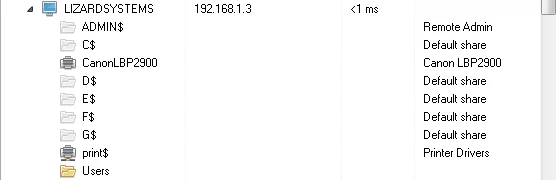
| Share | Comment Windows gives it | What it is | Who can use it |
|---|---|---|---|
| C$, D$, E$… | Default share | The root of each fixed drive | Administrators of that computer |
| ADMIN$ | Remote Admin | The Windows folder, used by remote management tools | Administrators |
| IPC$ | Remote IPC | Not a folder: the channel used for named pipes and remote calls | Connects widely, grants little by itself |
| print$ | Printer Drivers | Printer drivers for clients of a print server | Read for users, write for admins |
| SYSVOL, NETLOGON | Logon server share | Group Policy and logon scripts, on domain controllers | Read for domain users; not hidden |
These shares are how Computer Management, remote software installation and many backup and monitoring tools reach a machine. Removing them usually breaks management more than it improves security. What protects them is that only administrators can use them — which makes the security of the administrator accounts the real issue (see the last section).
Finding every hidden share
Network Scanner lists hidden and administrative shares along with everything else. Two controls pull them out of the tree:
Resource name filter
Type
$in the Resource name filter above the tree. Every share with a dollar sign on every computer is now in one list.Separate system from people
On the Filter tab, Administrative shares and IPC$ are their own resource types. Clear them, and what is left of the
$list is every hidden share that a person created.Check access
With Check access on (lesson 9), each of those shares also shows whether your account can read or write it.
Cross-check with the server’s own list. From your admin PC, Get-SmbShare against
each file server shows every share and its path, hidden or not:
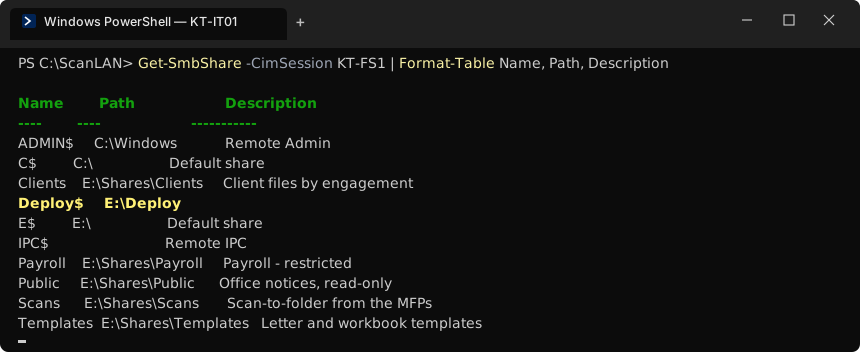
Deploy$.The Deploy$ finding
At Kestrel the $ filter, minus system shares, left exactly one row:
\\KT-FS1\Deploy$. It had no comment, it was not in the share register, and lesson
9’s check had already shown the cause: the share granted Everyone Full Control.
Before changing anything, find out what it is. Three questions, in order:
| Question | How | Answer at Kestrel |
|---|---|---|
| What is in it? | Open it as an administrator; look at file types and dates | Installers for the accounting software, a PDF reader, printer drivers; a script install-client.cmd |
| Who uses it? | Ask; search logon scripts and Group Policy for the path | The previous IT contractor used it to install software on new PCs |
| Is it still used? | Newest file dates; Get-SmbOpenFile on the server over a few days | Last change 14 months ago; no open files |
A software deployment share is a reasonable thing to have. A software deployment share that
any account can write to is one of the worst things a small network can have: replace
install-client.cmd or an installer, and the next new PC set up from it runs whatever the
attacker left there, with administrator rights. That is why this finding is rated high even though
nothing bad had happened.
Keep, restrict or remove
Every hidden share a person created gets one of three decisions:
| Decision | When | What you do |
|---|---|---|
| Keep | It has a purpose, an owner, and correct permissions | Add it to the register with a description |
| Restrict | It has a purpose but the permissions are too broad | Grant the right groups, remove Everyone, document it |
| Remove | No purpose, no owner, not used | Restrict first, wait, then Remove-SmbShare and archive the folder |
Kestrel chose restrict for Deploy$: the new IT process still needs a place for installers. Administrators get Full Control, Staff get Read (so that a technician logged in as a standard user can still run an installer), and nobody else gets anything. A description now says what it is and who owns it. The change itself is made — and proved with a re-scan — in lesson 12.
Revoke-SmbShareAccess -Name 'Deploy$' -AccountName Everyone -Force
Grant-SmbShareAccess  -Name 'Deploy$' -AccountName 'BUILTIN\Administrators' -AccessRight Full -Force
Grant-SmbShareAccess  -Name 'Deploy$' -AccountName 'KESTREL\Staff' -AccessRight Read -Force
Set-SmbShare -Name 'Deploy$' -Description 'Software installers - owner IT' -Force
icacls E:\Deploy /inheritance:r /grant 'BUILTIN\Administrators:(OI)(CI)F' 'NT AUTHORITY\SYSTEM:(OI)(CI)F' 'KESTREL\Staff:(OI)(CI)RX'
When administrative shares are the risk
C$ and ADMIN$ are only as safe as the accounts that can use them. They become a real risk in three situations, and all three are worth checking:
- The same local administrator password on every PC. One stolen password opens C$ on the whole network. Windows LAPS (Local Administrator Password Solution) gives every machine its own password.
- Staff with administrator rights. If ordinary users are local admins, “administrators only” means everyone. Lesson 11 shows this immediately: C$ comes back writable.
- Desktops that do not need remote administration from everywhere. Restrict SMB to desktops with Windows Firewall, allowing it only from IT’s addresses, through Group Policy.
Recording the decisions
# Hidden shares — review 2026-09-22
System shares (ADMIN$, C$, E$, IPC$, print$) on all servers: normal, admins only. Keep.

| Share             | Purpose               | Owner | Access found         | Decision | Status        |
|-------------------|-----------------------|-------|----------------------|----------|---------------|
| \\KT-FS1\Deploy$  | software installers   | IT    | Everyone: Full       | restrict | lesson 12     |
| \\KT-PC09\Temp$   | copy left from a move | IT    | Staff: Change        | remove   | 2026-09-29    |
Exercise: account for every dollar sign
- Load your latest scan (with Check access) and filter by name on
$. - Clear Administrative shares and IPC$ on the Filter tab; list what remains.
- For each remaining share: what is in it, who uses it, when it last changed.
- Confirm permissions with
Get-SmbShareAccessandicacls. - Write
hidden-shares.mdwith a keep / restrict / remove decision for each one. - Check whether your PCs share one local administrator password; if they do, add LAPS to your lesson 12 list.
Checkpoint
Tick these off before moving on. If one fails, the lesson section above it has the fix.
- You have a list of every share ending in $ across your in-scope segments
- Each one is labelled system (C$, ADMIN$, IPC$, print$, drive shares) or created by a person
- Every person-created hidden share has an owner, a purpose and a decision
- No hidden share grants Everyone Change or Full Control
hidden-shares.mdrecords the decisions and the date