Why your own scan is the wrong view
In lesson 9 you scanned with Check access as yourself. As an administrator you could write to nearly everything, so every share came back Write, and the scan could not tell you which of those shares an ordinary login can write to. That is the question that matters: most attacks on small networks start with one ordinary account — a phished password, a reused password, an unlocked PC.
This lesson repeats the scan as a standard member of staff. The difference between the two views is the list of things only administrators can do (good), and the list of things everyone can do that nobody intended (bad).
Scan as the least-privileged account that exists. What it can reach is what everyone can reach.
Prepare a test account
Do not borrow a colleague’s login, and never ask for anyone’s password. Create a test account that looks exactly like a new starter:
New-ADUser -Name 'test.user' -SamAccountName 'test.user' `
  -UserPrincipalName 'test.user@kestrel.lan' -Path 'OU=IT Test,DC=kestrel,DC=lan' `
  -AccountPassword (Read-Host -AsSecureString 'Password') -Enabled $true `
  -Description 'Share-access testing - owner IT - disable after use'

# Same groups as a new starter: Domain Users, plus Staff if that is what new starters get
Add-ADGroupMember -Identity 'Staff' -Members 'test.user'
Decide deliberately whether the test account joins Staff. Without it, the scan shows what any authenticated account can do — including service accounts and a stolen login of any kind. With it, the scan shows what a normal employee can do. Kestrel ran both, and the brief results below are for the Staff member.
Two ways to scan as the user
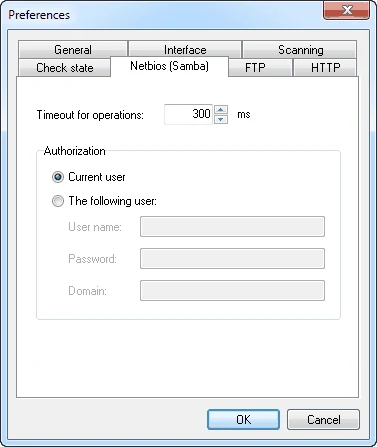
Option 1 — Network Scanner’s own setting. On the Netbios (Samba) tab of Preferences, switch Authorization from Current user to The following user and enter the user name, password and domain. Access checks now run as that account, while the program itself still runs as you.
Option 2 — run the whole program as the user. Windows’ runas starts
a program under another account. Everything that program does — the scan, opening a share,
a PowerShell check — happens as that user, which makes it easy to prove findings by hand.
runas /user:KESTREL\test.user "<full path to the Network Scanner program file>"
runas /user:KESTREL\test.user powershell
To find the full path, right-click Network Scanner in the Start menu and choose Open file location, then look at the shortcut’s properties. Simpler still: hold Shift, right-click the shortcut and choose Run as different user. Network Scanner does not need administrator rights to scan, so running it as a standard user works normally.
| Option 1: The following user | Option 2: runas | |
|---|---|---|
| Set-up | Preferences only | Start the program with another login |
| What runs as the user | Share access checks | Everything, including Explorer and PowerShell |
| Remember to undo | Switch back to Current user; clear the password | Close the program |
| Best for | Quick repeat scans | Proving findings by hand |
Run the user-view scan
Use the same targets and check profile
Same target set as lesson 9, same check profile from lesson 6. Tick Netbios (Samba) with Check access. Only the account changes.
Scan and save under a clear name
Save the result as, for example,
2026-09-22 access as test.userinC:\LANScan365\results\, next to the admin scan from lesson 9.Filter to the interesting rows
On the Filter tab: keep Write only, clear IPC$, then look again with Read only. Administrative shares should now come back Access denied — if C$ on a PC shows Write for the test account, that account is a local administrator there.
Compare the two views
Put the two scans side by side — two windows, or the two HTML exports in two browser tabs — and go share by share. At Kestrel:
| Share | As it.admin | As test.user | Intended for Staff | Verdict |
|---|---|---|---|---|
| \\KT-FS1\Clients | Write | Write | Change | OK |
| \\KT-FS1\Payroll | Write | Access denied | None | OK — exactly right |
| \\KT-FS1\Templates | Write | Read | Read | OK |
| \\KT-FS1\Scans | Write | Write | Change | OK (after the lesson 9 fix) |
| \\KT-FS1\Deploy$ | Write | Write | Read at most | Finding: anyone can replace installers |
| \\KT-NAS\Backup | Write | Access denied | None | OK |
| \\KT-PC*\C$ | Write | Access denied | None | OK — staff are not local admins |
One finding stands out, and it is the same share lesson 10 flagged: Deploy$ lets an ordinary account write. Payroll’s Access denied is just as important — a result that proves a control works is evidence worth keeping.
Prove a finding by hand
A scanner result is strong evidence; a reproduced result is proof. With a PowerShell window started
through runas as the test user, check the key shares and try one harmless write:
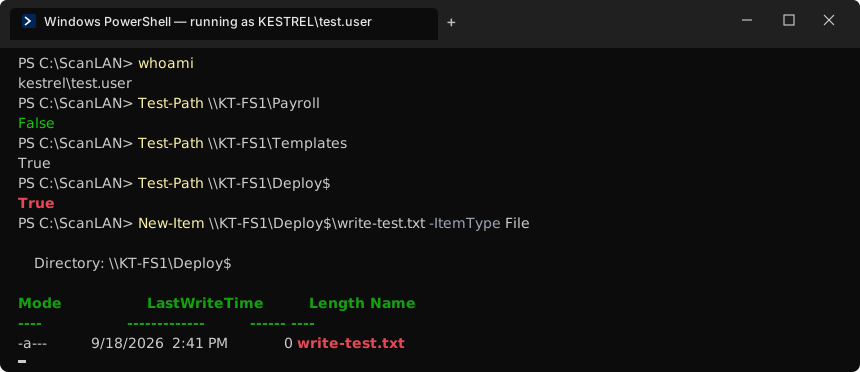
kestrel\test.user: Payroll is closed, Templates is readable, and a new empty file lands in Deploy$. The finding is confirmed.Delete the test file straight away (Remove-Item \\KT-FS1\Deploy$\write-test.txt),
and note in your write-up that you created and removed it. Never test by changing or deleting real
files.
Write up the user’s view
# The network as KESTREL\test.user — 2026-09-22
Account: test.user, member of Domain Users + Staff. Disabled after the test.
Scans: 2026-09-22 access as it.admin / 2026-09-22 access as test.user
Method: Network Scanner, Check access, same targets and check profile.

Controls that work
- Payroll, KT-NAS\Backup, all C$/ADMIN$: Access denied   (evidence: scan + Test-Path)

Findings
- HIGH  \\KT-FS1\Deploy$ writable by any Staff member (write-test.txt created and removed)
        -> restrict as planned in hidden-shares.md; fix in lesson 12

Housekeeping
- Netbios preferences switched back to Current user; stored password cleared
- test.user disabled 2026-09-22 16:10
Exercise: scan as an ordinary user
- Create (or re-enable) a test account with a new starter’s groups.
- Scan with Check access as that account, using the same targets and profile as your admin scan.
- Compare the two scans share by share and fill a table like the one above.
- Prove each finding by hand through
runas, with one harmless test file you delete straight away. - Write
user-view.md, then switch Preferences back to Current user and disable the account.
Checkpoint
Tick these off before moving on. If one fails, the lesson section above it has the fix.
- A dedicated test account exists, in Domain Users only, with a password known only to you
- You have two saved scans with Check access: one as your admin account, one as the test account
- Every share writable by the test account is either intended or listed as a finding
- Payroll and similar restricted shares show Access denied for the test account
- The test account is disabled again, and the stored credentials are removed from Preferences